or
JSON Mapper
Transform JSON data between different formats. Two ways to build a transformation map: paste two JSON examples and let the tool auto-generate the mapping, or write/edit the map manually using source -> target syntax.
Quick Start:
- Paste Source JSON (the format you have) and Target JSON (the format you want) into the panels below. The Load from URL is for Registered Users.
- Click Parse JSON(s) to analyze both structures and auto-generate the manual mapping editor with fields already linked.
- Review links in Manual mapping, connect unlinked fields, then click Build Map to build transformation map — or write/edit the map directly in the Transformation Map panel.
- Replace Source with real data, click Apply Map to transform, then Save output (Registered Users).
Source
Target
Ready. Paste JSON into both panels, then click Parse JSON.
When you click Parse JSON(s), paths are linked automatically in priority order:
- Identical paths — source and target paths match exactly
- Identical values — fields contain the same example value
- Matching short names — field names correspond after ignoring separators/case
- Common value formats — fields share the same detected format (e.g. price, date, email, url, word)
After automatic linking you can continue with manual mapping. Choose one of the following methods:
- Source-first: Click a source path, then pick an unlinked target from the list that appears.
- Target-first: Click a target path, then click the desired source path to establish the link.
To Remove links:
- Remove source: Click the delete button (left) to remove the source path from the mapping. The target becomes available again. Use Parse JSON to restore removed source paths.
- Unlink target: Click the chain button (center) to unlink the target from the source. The source path stays in the mapping.
Manual mapping
Link JSON paths from your source (left side) to target (right side) fields.
Click Build Map when done to generate transformation map.
Transformation Map
The transformation map defines how fields should be transformed.
You can edit the map directly or save/load them for reuse (Subscribers only).
Change the order of the rules to control the sequence of transformations.
Once created, use this map to apply transformations to your data files.
Update account
Tutorial
Stop writing manual transformation code. Paste two JSON examples and let the tool build transformation map automatically. Create one and reuse it anytime. All processing happens in your browser — nothing is sent to a server. Watch Tutorial video and Features video
-
Load Source and Target JSON
Open the Mapper and fill both panels with example JSON — paste two JSON structures that define the formats you want to convert between.
- Source (left panel) — the format you are transforming from. Use Open to load a
.jsonfile, Load from URL (Registered Users) to fetch one, or paste directly into the textarea. - Target (right panel) — the desired output format. Use the same loading options.
- Click Simplify on either panel to merge duplicate array objects and keep only unique elements — to generate Transformation Map unique elements are needed.
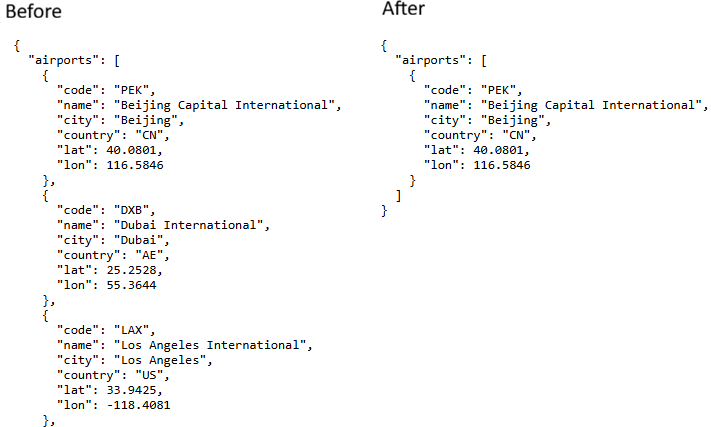
- Source (left panel) — the format you are transforming from. Use Open to load a
-
Parse JSON(s)
Click Parse JSON(s) to analyze both structures and open the Manual mapping editor.
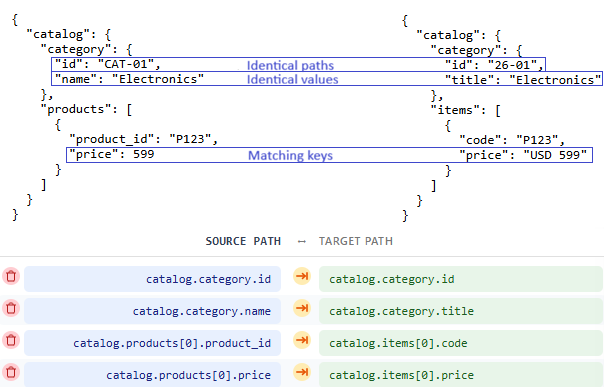
Fields are linked automatically in this priority order:
- Identical paths — source and target paths match exactly
- Identical values — fields contain the same example value (e.g. set both
firstNameandfirst_nametoJohnbefore parsing) - Matching short names — field names correspond after ignoring separators/case
- Common value formats — fields share the same detected format (e.g. price, date, email, url, word)
-
Adjust manual mappings
Review links in the Manual mapping panel and connect any fields that were not matched automatically.
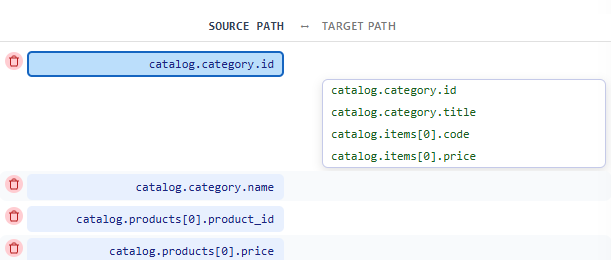
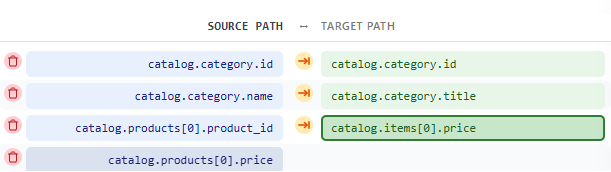
- Source-first: click a source path, then pick an unlinked target from the list that appears.
- Target-first: click a target path, then click the desired source path.
To remove links:
- Remove source — click the delete button (left) to drop a source path from the mapping. The target becomes available again. Use Parse JSON(s) to restore removed source paths.
- Unlink target — click the chain button (center) to unlink the target while keeping the source path.
-
Build Map
When all fields are linked, click Build Map. The generated transformation map appears in the Transformation Map panel.
You can edit the map directly in that textarea. The format uses one
source -> targetmapping per line:catalog.categories[*].id -> catalog[*].short_name catalog.categories[*].products[0].currency -> catalog[*].price_currency catalog.categories[*].products[*].id -> catalog[*].products[*].id catalog.categories[*].products[*].name -> catalog[*].products[*].name catalog.categories[*].products[*].tags[*] -> catalog[*].products[*].plan.features[*]
Use Open / Save on the Transformation Map panel to load or store a map for reuse (Subscribers only).
-
Apply Map and save output
Replace the Source panel content with the real JSON data you want to transform, then click Apply Map. The transformed result is written to the Target panel.
Click Save on the Target panel to download the output as a
.jsonfile.
Key Features & Capabilities
The JSON Mapper tool provides a powerful, code-free environment for transforming complex data structures. Below are the core features that enable seamless data integration and reorganization.
Tired of manually mapping complex JSON structures? JSON Mapper automates the bridge between your source data and your desired output format. By analyzing two JSON examples, the tool intelligently suggests links based on identical paths, matching names, shared values, and common value formats.
Key Features
- Smart Auto-Mapping: Automatically links fields by comparing structure, example values, and common value formats.
- Visual Manual Editor: Fine-tune your mappings with a simple click-to-connect interface.
- JSON Simplification: Automatically merges duplicate array objects to create clean, unique transformation templates.
- 100% Private & Secure: All processing happens locally in your browser. No data is ever sent to a server, making it safe for sensitive commercial data.
- Reusable Maps: Build a transformation map once and reuse it for all future data files (available for subscribers).
- Instant Transformation: Paste your real data, apply your map, and download the converted JSON file immediately.
-
Intelligent JSON Key Renaming
The tool allows for seamless renaming of keys across any nesting level. By mapping a source field to a target field with a different name (e.g.,
sku→product_code), the mapper automatically handles the translation. This is essential for normalizing data from different third-party APIs (like Stripe, Shopify, or Salesforce) into a consistent internal format. -
Dynamic Structural Reorganization
Beyond simple renaming, the tool can completely change the object's structure. You can move fields from a flat root level into a nested object (e.g.,
firstName→profile.personal.name) or extract deeply nested values into a flat structure. This "unflattening" and "flattening" capability allows you to reshape JSON to match specific database schemas or UI requirements without writing custom transformation code. -
Multi-Level Array Flattening
One of the most powerful features is the ability to convert multi-level nested arrays into a single-level list. For example, if you have a structure like
Categories > Products > Tags, the mapper can "flatten" this so that every tag becomes a top-level item in a target array. During this process, the tool automatically propagates parent data (like the Category Name) into every child element, ensuring no context is lost. -
Wildcard-Based Array Processing
Using the
[*]wildcard pattern, the tool can process arrays of any length. It identifies structural patterns within arrays, allowing you to map every object in a source list to a new structure in the target list. This ensures that whether your source has one item or one thousand, the transformation logic remains consistent and accurate. -
Positional vs. Structural Mapping
The mapper distinguishes between "structural" mappings (where every item in an array follows the same rule) and "positional" mappings (where you want to extract a specific element, such as
tags[0]mapping toprimary_category). This provides the flexibility to handle both bulk data processing and specific field extraction in a single transformation map. -
Type Conversion and Value Mapping
The tool supports converting data types during the mapping process, such as turning a simple array of strings into an array of complex objects, or vice versa. By "mapping by example," the tool infers the desired target type based on the target JSON you provide, automating the conversion of primitive values into structured data.
-
Automated Mapping Discovery
The Parse JSON functionality automatically detects identical or similar field names, shared example values, and common value formats between the source and target files. It generates an initial set of mapping rules instantly, significantly reducing the manual effort required to build a transformation map for large, complex JSON files.
Plans
Guest
Free
No account required.
- Load sample JSON files
- JSON simplification
- JSON parsing and mapping
- Automatic and manual mapping
- Build transformation map
- Apply map to transform data
Basic
Free
Free account.
- Load sample JSON files
- JSON simplification
- JSON parsing and mapping
- Automatic and manual mapping
- Build transformation map
- Apply map to transform data
- Save transformed JSON file
Subscriber
5 EUR / Month
All features unlocked.
- Load sample JSON files
- JSON simplification
- JSON parsing and mapping
- Automatic and manual mapping
- Build transformation map
- Apply map to transform data
- Save transformed JSON file
- Save and load transformation map
- Priority support
Subscriptions
Active subscription
Subscribed since
Valid from till
Not subscribed
Legal
Terms of Use
This tool is provided as-is for personal and commercial use. No warranty is given.
Privacy Policy
Data Processing
Client-Side Processing
No data is sent to any server.
All JSON processing happens entirely in your browser.
This means:
We cannot see your JSON data
We cannot store your JSON data
We cannot share your JSON data
You can verify this by using our tools while offline or by inspecting network requests in your browsers
developer tools.
Local Storage
We may store User's information in your browsers local storage
Data Security
Since we dont collect or store your JSON data, there is no risk of your data being compromised on our servers. The website is served over HTTPS to ensure secure communication.
Childrens Privacy
Our services are not directed to children under 13. We do not knowingly collect information from children.
Contact Us
If you have questions, please contact us through our website.
Your Rights
You may have rights including:
Access to your personal data
Correction of inaccurate data
Deletion of your data
Data portability
Objection to processing


